专注体育运动场材料领域 塑百年品牌 创环保跑道
400-928-9558
18912360877
18912360877

材料组成:预制型跑道具有安全、环保、优异的耐候性,经济耐用,多色彩效果,安装便捷,使用配套提供的专用粘接剂,在少量人力和机械条件下,即可进行跑道卷材的施工。理化性能全面符合新国标GB36246-2018 的指标要求。
查看产品详情材料组成:渗水型跑道又称透气型跑道。在跑道系列中,它是唯一拥有渗水功能的跑道类型,施工简单、快捷,是目前塑胶跑道面层的主流产品之一。透气型跑道采用高弹性 EPDM 彩色颗粒粘接环保胶水摊铺,弹性好、成本低,保证运动场地的环保。理化性能全面符合新国标 GB36246-2018 的指标要求。
查看产品详情材料组成:混合型跑道采用国际田联认可的混合结构,弹性层由环保的双组份聚氨酯混合料加入 EPDM彩色颗粒摊铺到相应的厚度,呈平整、密实结构,具备优越的物理性能和良好外观,得到市场的广泛认可。面层由 EPDM 彩色颗粒与单组份聚氨酯喷面胶混合喷涂而成,也可采用撒颗粒的方式。理化性能全面符合新国标 GB36246-2018 的指标要求。
查看产品详情材料组成:复合型跑道介于渗水型和混合型跑道之间,弹性层采用 EPDM 彩色颗粒摊铺,弹性好,成本低,中间用环保的双组份聚氨酯混合料刮涂封闭加固,面层由 EPDM 彩色颗粒与单组份聚氨酯喷面胶混合喷涂而成。表层稳固,高耐磨性能,不易脱粒,确保使用寿命。理化性能全面符合新国标 GB36246-2018的指标要求。
查看产品详情材料组成:全塑型跑道呈平整密实结构,主要成分是双组份聚氨酯材料,弹性层由双组份聚氨酯混合料一体成型,面层由 EPDM 彩色颗粒与单组份聚氨酯喷面胶混合喷涂而成。理化性能全面符合新国标GB36246-2018 的指标要求。
查看产品详情材料组成:EPDM 球场主要由高聚物含量大于 20%的 EPDM 彩色胶粒与聚氨酯胶黏剂组成,是固定式的运动场地材料。全天候使用,不会因紫外线,酸雨等的污染而褪色,能长期保持其高水准的运动性能。理化性能全面符合新国标 GB36246-2018 的指标要求。
查看产品详情 产品介绍
1.同簇双型“W+S”升级型。
2.为满足高端客户需求,故推出W+S/PLUS型,提升了草坪的磅重、密度,对S型和W型草丝加宽加厚,使得草丝直立性和耐磨性进一步提升。
3.S型草丝,耐磨度高于单丝加筋型草丝;W型草丝,直立性高于C型草丝,远超其他同类产品。
4.已成熟运用于上海申花足球俱乐部训练基地等项目。
产品介绍
1.同簇双型“W+S”型。
2.为同时解决草丝的耐磨性与直立性的矛盾问题,新开发出同簇S型和W型草丝,使得S型草丝保证其耐磨性,W型草丝保证其直立性和反弹力。
3.大幅度提升草丝使用寿命、抗老化、抗紫外线、抗菌等效果。
4.S型草丝,耐磨度高于单丝加筋型草丝;W型草丝,直立性高于C型草丝,两者结合。
产品介绍
1.双S重合型草丝。
2.草丝截面呈双S状,大幅度增强了草丝的挺拔度和直立效果。
3.双S型草丝具有回弹性、耐磨性和防滑性。
4.草丝色泽自然,仿真度可与天然草媲美,铺装效果好。
5.采用进口抗UV、抗老化、抗紫外线材料。
产品介绍
1.市面主流成熟型单丝加筋草。
2.进口原材料、助剂。
3.草坪抗紫外线和耐磨性能达到较高水平。
4.单丝加筋草丝不仅加强了草丝的挺拔度、耐磨性,还进一步提高了直立仿真效果。
5.草丝色泽自然,平整柔软,可以和天然草相媲美。
产品介绍
1.产品配方、生产工艺标准,第五代免填充草。
2.草丝截面呈C状,增强了草丝的排水性和直立性。曲丝增强了草坪的回弹性和防滑性。
3.草坪耐磨性能卓越,寿命长,可高频率使用。
4.无需填充石英砂、橡胶颗粒,铺装更方便,更环保。
5.便于拆装、可重复使用。
产品介绍
1.专利型产品,直丝为双S设计,保证其直立性、无倒向性,耐磨性,曲丝采用耐磨菱形草丝。
2.解决免填充草坪阻力、倒向性、回弹、安全性、平整度的问题。
3.高磅重曲丝,规格远超其他同类产品,曲度明显,底盘厚实,保证草缓冲效果及增加摩擦力,能很好的起到保护运动员的作坪回弹性。
4.脚感舒适,具有优良的减震作用。
1、防紫外光、色泽稳定、防磨损、防爆裂、抗老化、寿命长;
2、无起泡、无拼接缝隙、颜色多种、可随意搭配;
3、可全天候使用、弹性好、耐磨性强、耐候性佳、耐压缩性强、抗钉力强、耐冲击佳、平整;
4、EPDM颗粒的性能:质优的EPDM颗粒具有良好的物理性能,可以拉伸到一定程度而不断裂;
一种热塑性弹性体材料,具有高强度,高回弹性,可注塑加工的特征,应用范围广泛,环保无毒安全,有优良的着色性,其物理机构性能、加工性能及制品的使用性能接近于天然橡胶,有些性能如耐磨、耐热、耐候、耐老化能力较天然橡胶更为优良,更是兼具橡胶和塑料的优点。
查看产品详情 1、防紫外光、色泽稳定、防磨损、防爆裂、抗老化、寿命长;
2、无起泡、无拼接缝隙、颜色多种、可随意搭配;
3、可全天候使用、弹性好、耐磨性强、耐候性佳、耐压缩性强、抗钉力强、耐冲击佳、平整;
4、EPDM颗粒的性能:质优的EPDM颗粒具有良好的物理性能,可以拉伸到一定程度而不断裂;
一种热塑性弹性体材料,具有高强度,高回弹性,可注塑加工的特征,应用范围广泛,环保无毒安全,有优良的着色性,其物理机构性能、加工性能及制品的使用性能接近于天然橡胶,有些性能如耐磨、耐热、耐候、耐老化能力较天然橡胶更为优良,更是兼具橡胶和塑料的优点。
查看产品详情人造草坪减震垫,是一种仿真人造草坪减震软垫基础产品,采用聚乙烯交联XPE发泡片材,具有隔音好,防水防潮、无毒环保、回弹力好,重量轻、使用寿命长等特点,可以通过冲孔或开槽工艺解决草坪垫排水问题,产品应用广泛:主要应用在足球场、橄榄球场、曲棍球场、高尔夫打击垫、高尔夫果岭、幼儿安全地面系统、网球草场、体育休闲区等。
查看产品详情球场围网是专为体育场设计的新型防护产品,此品网体高、防攀爬能力强。它又被称为:"体育场围网",可以在现场施工安装围柱,围网,产品最大特点是灵活性强,可根据要求随时调整网片的结构,造型和尺寸。体育场围网特别适用于高度4米以内的作为球场围网、篮球场围网、排球场地和体育训练场地使用, 具有防腐、防老化、抗晒、耐候、色彩鲜亮、网面平整,强力张紧,不易受外力撞击变形、现场施工安装、灵活性强(可根据现场要求随时调整造型和尺寸)。
查看产品详情照明对于凯发K8的现代生活是至关重要的。无论它是用于照明住宅、办公场所、公共建筑,还是用于提供安全保障或只是为了营造氛围。而作为照明领域重要组成部分的体育照明,对于光源的要求又有所不同。由于体育场馆的特殊性,既要求照明必须足够专业,又要求灯光能够随着比赛的切换而有所转变!
查看产品详情
凯发K8采用国外进口材料或国内一级原材料,从源头确保产品品质,通过行业多项检测标准认证,严格保证产品质量的优质性和稳定性,材料环保安全。

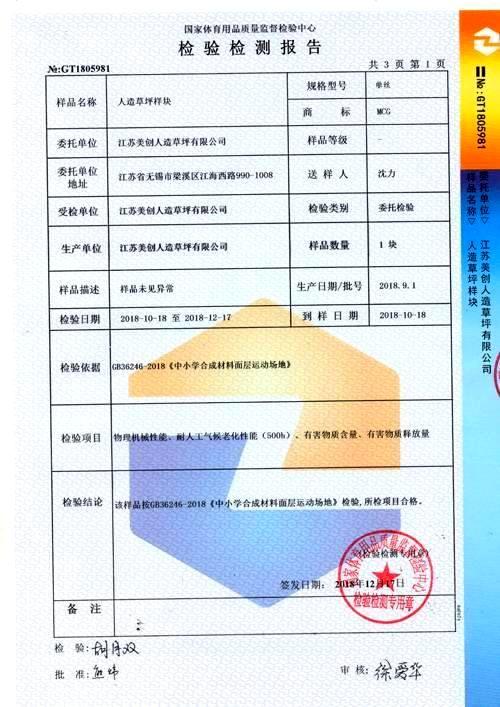
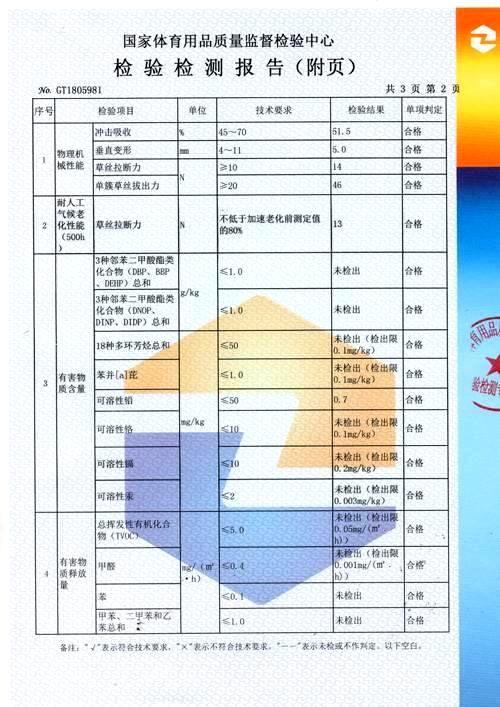
凯发K8运动面层材料通过新国标《GB 36246-2018 中小学合成材料面层运动场地》的全项检测,满足“上海团体标准2.0 ”,深圳等地方标准检测,权威认证,环保放心。

高聚物含量大于20%,特殊工艺处理,粘结力强,高弹性,拒绝场地开裂,拒绝太硬。使用寿命长达十年以上实践证明,不掉粒,无褪色,强力耐磨,安全耐用。

凯发K8采用进口先进生产设备和检测设备,施工工艺可靠,建立了高标准,严要求的产品研发及质量控制体系。


集合啦,集合啦,集合啦 开往绍兴的大巴 小伙们走过路过,都没错过, 凯发K8欢声笑语地开启了美好时光, 2019...
2018年12月3日下午1:38分,江苏凯发K8实业集团“大道直行...
10月7日,抓着国庆的小尾巴,凯发K8公司干部职员齐聚风景...
2016年,因全国各地中小学校爆发出多起“毒跑道”事件...
经过多年的发展,塑胶球场也经过了好几代的更替。球场材料的变更,一方面因为科技的进步促使更优越的替代品...
橡胶颗粒为塑胶跑道的基本基材之一,颗粒的质量直接影...
塑胶跑道工程,作为建筑行业的一个分支,经过多年的发...
在大中城市,幼儿园数量随着居民小区的新建而逐渐增加...
1、混合型塑胶跑道混合型塑胶跑道又称传统型跑道,呈平整密实型结构。混合型塑胶跑道一般用在专业的比赛...
标准的塑胶跑道每条道的宽度是1.22米,如果场地宽度比...
塑胶跑道简介:塑胶跑道又称全天候运动跑道,由聚氨酯...
塑胶跑道又称全天候田径运动跑道,它由聚氨酯预聚体、...
江苏盛世凯发K8实业发展有限公司,是一家专业从事体育运动场地咨询、设计、施工、销售及维护于一体的塑胶跑道、人造草坪等体育产品设施的综合性企业。凯发K8率先引进...
查看更多无锡市梁溪区江海西路990号智慧大厦1008室
1570556338@qq.com
400-928-9558
江苏盛世凯发K8实业发展有限公司 备案号: 苏ICP备18005553号-3
Jiangsu Shengshi Meichang Industrial Development Co., Ltd. 联系凯发K8
 .jpg "探寻体育设施大全:哪些体育设施登上排行榜?") 探寻体育设施大全:哪些体育设施登上排行榜?
探寻体育设施大全:哪些体育设施登上排行榜?在现代社会中,体育运动越来越受到重视,人们对参与各种体育活动的热情也日益高涨。而体育设施的建设和发展也成为了关注焦点之一。究竟哪些体育设施最受欢迎?本文将带您一起探寻体育设施大全以及它们在排行榜上的表现。体育设施大全涵盖了各种各样的场馆和设备,如体育馆、篮球场、足球场、游泳池、健身房等。这些设施不仅为人们提供了进行体育运动的场所,也为个人健康和社区活动做出了积极贡献。在排行榜上,一些体育设施因其先进的设备和优质的服务而备受赞誉。例如,某某体育馆因其现代化的场地设施和专业的教练团队,被评为最受欢迎的体育设施之一。另外,某某游泳池则以其清澈的水质和宽敞的泳池空间赢得了用户的青睐,成为了排行榜上的热门选择。那么,如何选择适合自己的体育设施呢?首先,可以根据自己的兴趣和需求来选择不同的设施,比如喜欢篮球的人可以...
体育设施对于一个地区的发展和居民的健康和娱乐起着重要的作用。然而,选择适合的体育设施公司并不容易。在市场上,有许多公司提供各种各样的体育设施服务。那么,我们应该如何选择合适的体育设施公司呢?本文将从几...
在现代社会中,保持健康的生活方式变得越来越重要。体育锻炼是一种有效保持身心健康的方式,因此选择合适的体育设施以及合理规划使用时间,对于追求健康生活的人来说十分关键。首先,如何选择合适的体育设施是一个...
在现代社会,体育运动被广泛认为是维持人们身体健康和增进社交互动的重要途径。为了促进公众参与体育活动,城市和社区不断努力提供适当的体育设施。本文将探讨体育设施的种类、质量和数量以及背后的原因。首先,体...
近年来,随着人们对健康和生活质量的追求不断增加,体育活动变得越来越受欢迎。因此,建设体育设施成为了许多公司关注的问题。那么在建设体育设施的过程中,公司需要考虑哪些方面?这个过程需要多久完成?又应该如何...
引言:体育设施的建设和发展对于一个城市的健康发展至关重要。了解不同种类的体育设施以及它们分布在哪里,以及价格如何,对于体育爱好者和城市规划者都是有着重要意义的。多种类的体育设施体育设施的种类可以...